Companions

The same day, on more surfaces.

Sempa is one server you host yourself — and more than one way to meet your day. Beyond the desktop, web and mobile apps, two companions give today a permanent home: a glanceable cockpit for an ultrawide display, and the Sempa Dock, a small desk appliance you build yourself.

Desktop & web Android Cockpit Dock
In the app now

A cockpit for the Corsair Xeneon Edge.

Sempa has a dedicated cockpit mode built for ultrawide secondary displays like the 2560×720 Corsair Xeneon Edge. Park it below your main screen and it becomes mission control for the day — a calm glance at what's now, that expands into a full mouse-and-keyboard view when you want to drive.
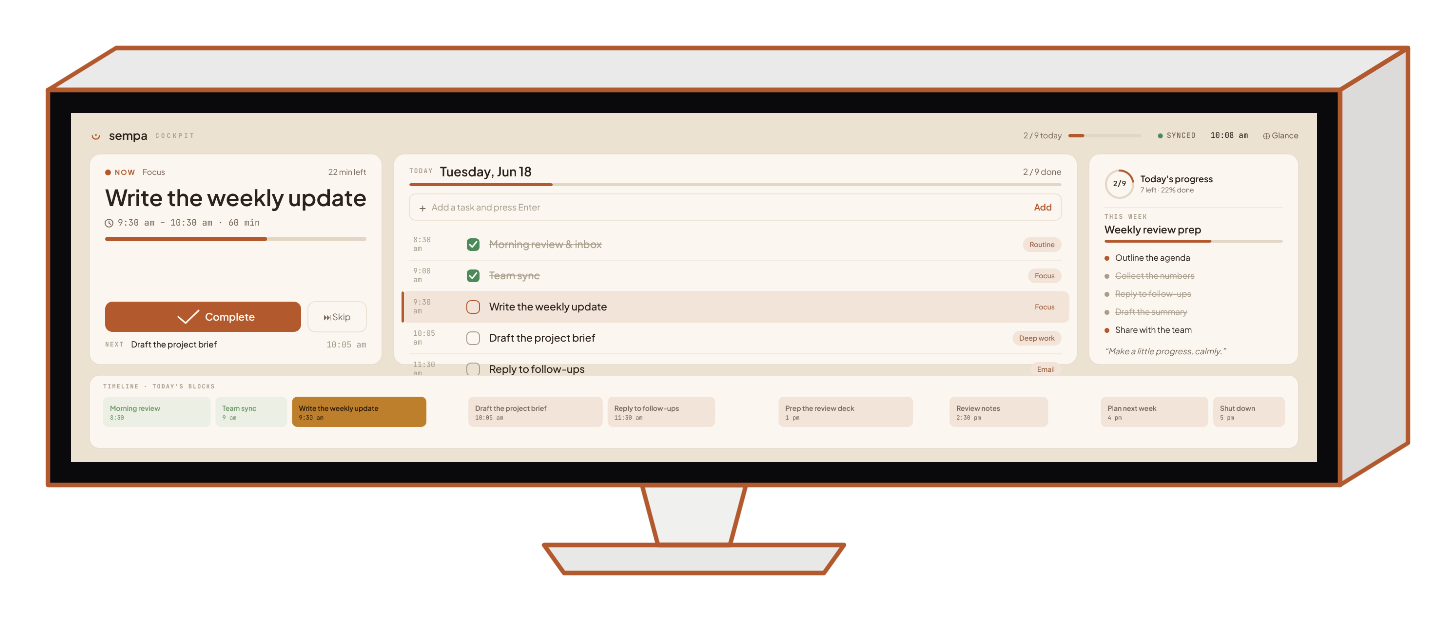
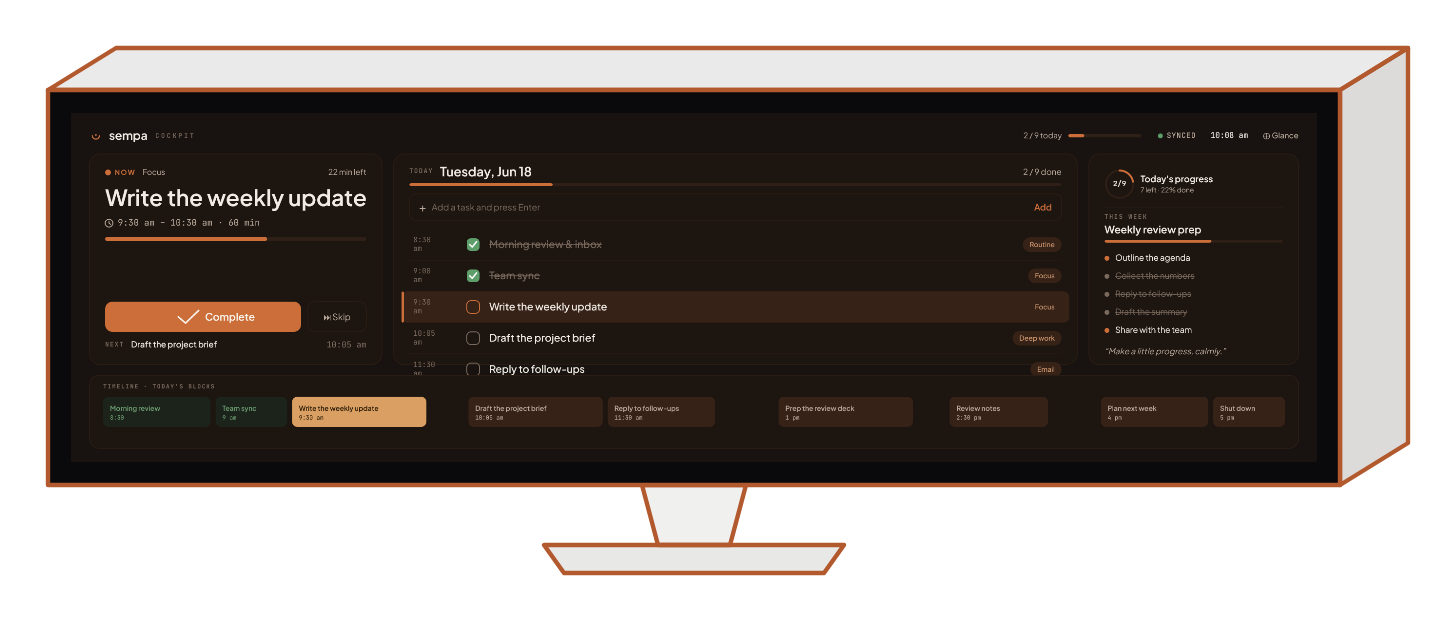
Sempa cockpit mode on an ultrawide Corsair Xeneon Edge — a NOW card with the current task and a Complete button, the day's task list for Tuesday June 18, a Today's progress panel, and a timeline of the day's time-blocks along the bottom. Sempa cockpit mode on an ultrawide Corsair Xeneon Edge in dark mode — a NOW card with the current task and a Complete button, the day's task list, a Today's progress panel, and a timeline of time-blocks along the bottom.

Glance → Expand

Quiet by default — just the next thing and your progress. Expand into the full cockpit when you want to plan, reorder and quick-add without leaving the Edge.

Now, front and centre

The task in progress gets the biggest card on screen — its timer, what's next, and a one-press Complete. The thing you're doing is never more than a glance away.

The day on a timeline

Your time-blocks laid across the day along the bottom, calendar events and tasks in one strip — so the shape of the day reads at a distance.

Cockpit mode is part of the Sempa desktop app — no extra install, no extra cost. Point the Edge at your server and switch any window into the cockpit.
The Sempa Dock

A little desk appliance for your tasks.

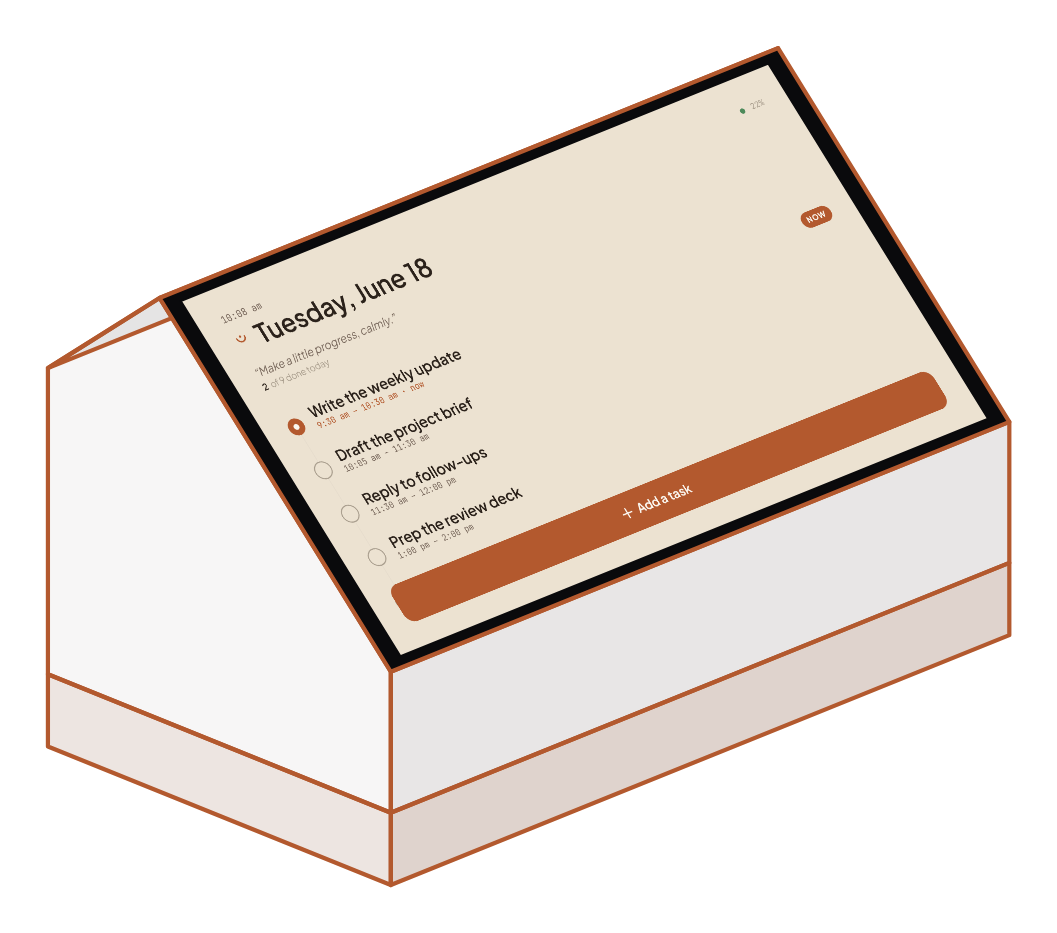
The Sempa Dock is an always-on touch device for your desk — a Raspberry Pi that boots straight into today. No login, no app to open: just today's tasks strung on the day thread, big enough to touch. It makes your plan a physical object you glance at and tap, like a paper list that keeps itself current.

Calm, tangible, always on.

Tasks hang on the day thread — a single spine for the day you can run a finger down. Add, check and reorder by touch; the on-screen keyboard is right there when you need it. There's nothing to manage, because there's nothing else on the screen.

Leave it for a while and it eases into an ambient face — the date, your next task and your progress, dimmed and serene like a desk clock. A single touch brings the full list back.

  • Boots into today in seconds — kiosk-simple, no desktop to escape to
  • Add, check and reorder by touch · on-screen keyboard
  • Ambient idle face — date, next task, progress; tap to wake
  • Offline-first — edits queue and resync when it reconnects
  • Responsive across 7″ (1280×720) and 5″ (800×480) panels
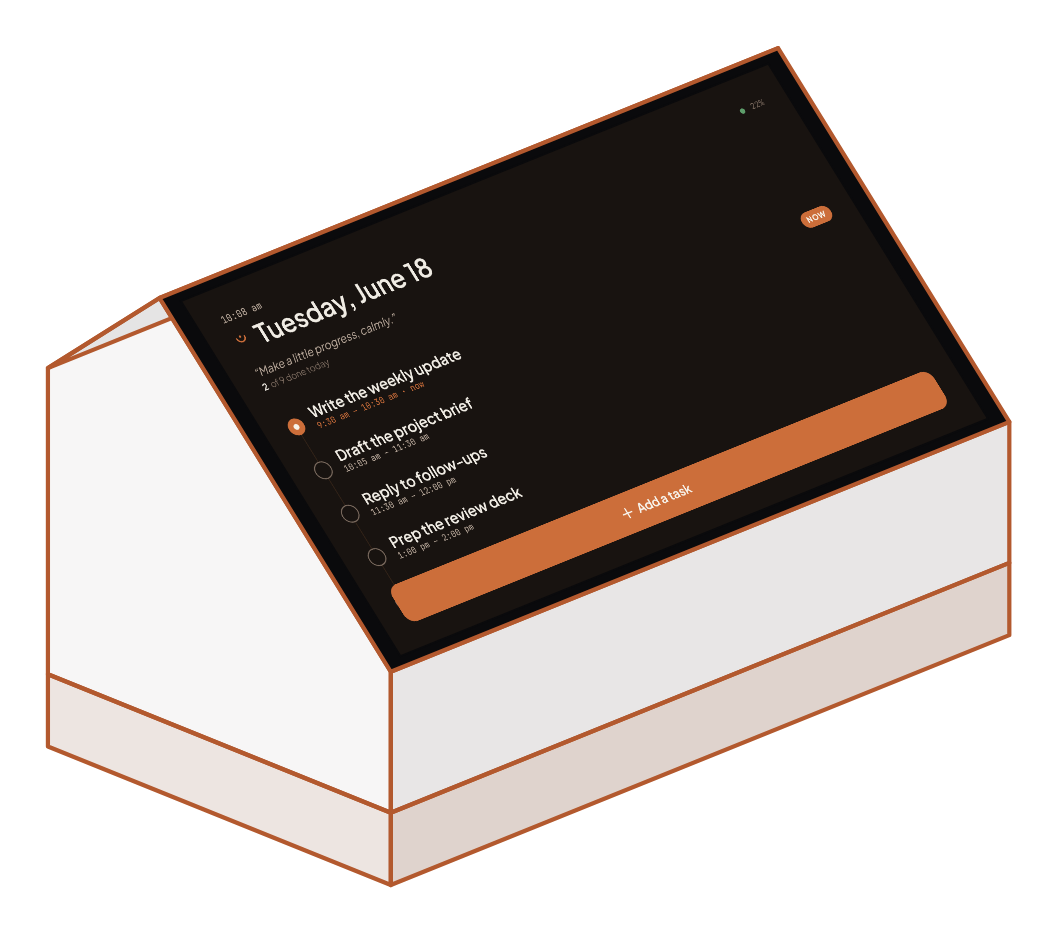
The Sempa Dock — a small angled Raspberry Pi touch appliance on a desk, its light paper-style screen showing Tuesday June 18, the day's tasks strung on a vertical thread, and an Add a task button. The Sempa Dock in dark mode — a small angled Raspberry Pi touch appliance showing Tuesday June 18, the day's tasks on a vertical thread, and an Add a task button.
How it works

Pair it once, then forget it's a computer.

1

Flash the image

Build a reproducible Raspberry Pi OS image and flash a card. It boots into a finished Sempa — no setup wizard, no desktop, no console flashes. The dock layout is the same app, in dock mode.

2

Pair with a code

On first run the Dock shows a short pairing code. Approve it from Settings → Paired devices in any signed-in Sempa app. That's the entire setup.

3

A scoped, revocable token

Pairing mints a device token that can only read today and this week and add or check tasks — never your settings, integrations or backups. No account password ever lives on the device, and you can revoke it anytime.

Build your own

It's a project, not a product.

The Dock is something you build yourself from a Raspberry Pi and a touch panel — there's no kit to buy. The dock layout ships inside the app, and the image recipe, kiosk config and full build guide are open in the repository.

An honest heads-up: this is a maker project. You'll flash an SD card and assemble a Pi. If that's not your thing, the cockpit and the regular apps cover the same day with no hardware at all.

What you'll need

A weekend project
  • Raspberry Pi 5 (4 GB) — a Pi 4 works too; the Pi 5 is noticeably snappier for the touch UI.
  • Official Touch Display 2 (7″ · 1280×720) — or a compact 5″ 800×480 touch panel.
  • A2 microSD or a USB-SSD and the official PSU (27W for Pi 5) — under-powering causes touch glitches.
  • Optional: an RTC module for time across power loss, and a stand at a readable desk angle (~20–30°).
One server, every surface

Everything stays in sync.

Check a task on the Dock and the cockpit ticks over; finish one in the app and the Dock's thread updates too. Every surface is a client of the same server you host yourself — your data never leaves your machine.